
Glossaries
Specify consistent wording for names, products, and technical terms in machine and AI translation.
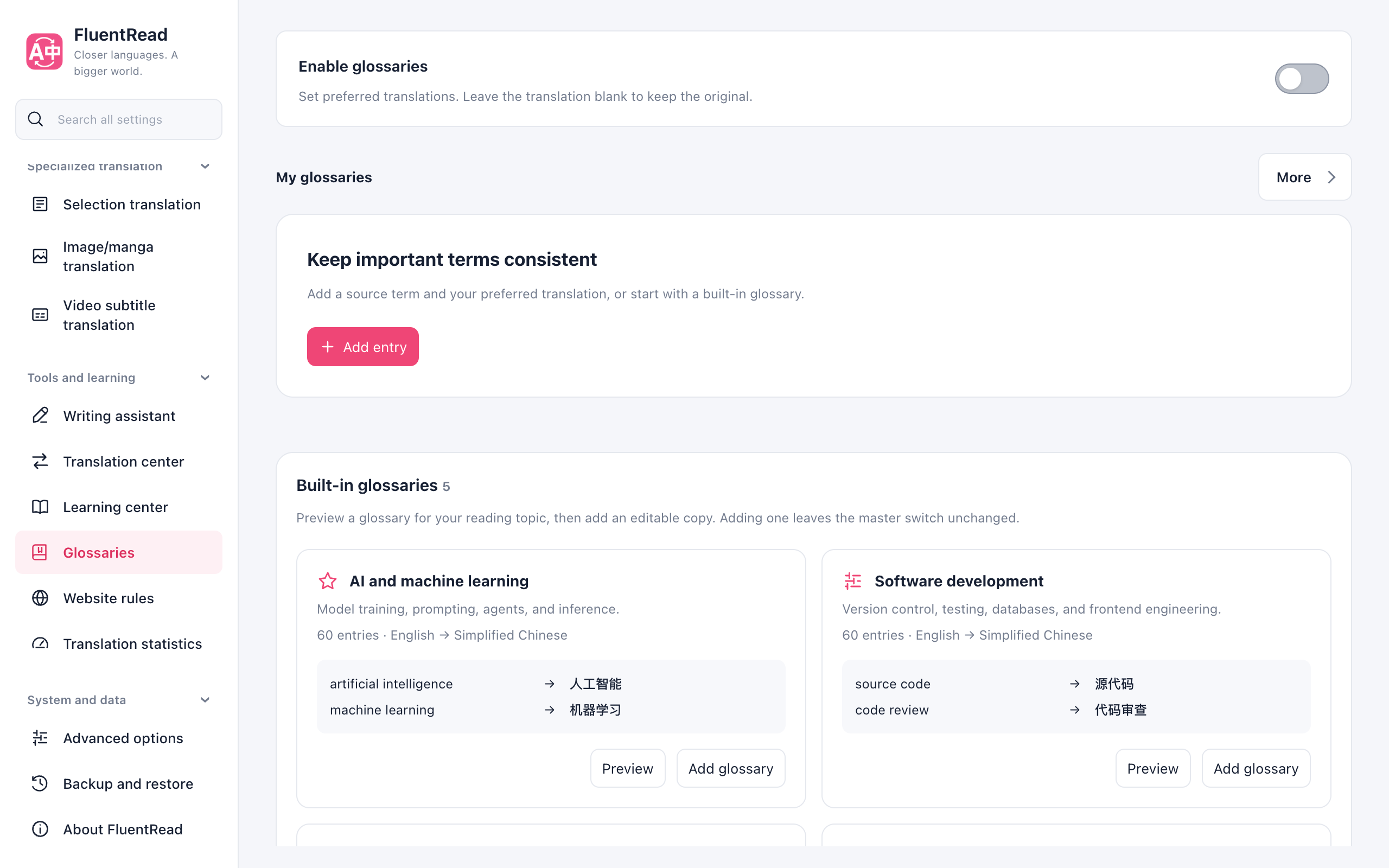
Add your first term
- Open Glossaries and click Add entry. A glossary is created for you when needed.
- Enter the source and translation, then Save. Leave the translation blank to retain the spelling found in the source.
- Enable the feature at the top. Saved terms apply to subsequent translations.
You can also preview and add a Built-in glossary. This creates an editable copy and preserves your master switch setting. Restore existing webpage translations before translating again.
The page toolbar shows Import glossary and New glossary, plus Match preview once entries are saved. Switch between multiple glossaries in the glossary card. The active language and website scope remain visible above the entries. Glossary settings stays visible at the bottom of the card; expand it to edit scope, export, or delete, and click again to collapse. With multiple glossaries, Glossary priority appears below the card. Case sensitivity is an optional entry setting.
Settings save automatically; entry edits require Save. Drafts survive switching glossaries within the same page. Save before closing it.
How translation works
How translation works
FluentRead matches terms locally, replaces them with separate placeholders before sending the source, and fills your wording into the returned translation. Longer overlapping phrases take priority. Repeated occurrences are protected independently. Only restored results reach the display and cache; changing a matched rule invalidates the related cache.
Machine services and AI use this shared process. AI prompts ask the model to preserve markers; Qwen-MT receives marker-to-marker mappings in its native terms field. Custom request bodies retain their field override behavior.
Placeholders hide some context and can affect surrounding grammar. They work best for fixed terms and names. If a service loses, duplicates, or changes markers, the request fails with a retry/switch-service message. Damaged results are not displayed or cached. Actual marker preservation depends on the service.
Scope and checking
Scope and checking
New glossaries default to the current target language. Existing language and website scopes remain unchanged. Empty website scope applies globally; website-scoped glossaries do not apply to local documents without a URL. Documents and videos can select their own glossaries.
Earlier glossaries win when multiple entries define the same source term. Expand Glossary priority below the glossary card to reorder them. Duplicate entries offer an action to edit the existing term. Distinct case-sensitive spellings can coexist; imported entries are not silently merged.
Open Match preview in the page toolbar only when needed. The check opens in a dialog; it is not offered for an empty glossary, which guides you to add an entry first. Results show matching terms and preferred translations in two columns, with a match count. The enable switch stays on the main page. Preview defaults to automatic source language and the current target; optional language and website conditions are collapsed. Exclusion reasons are available when nothing matches or definitions conflict. Preview runs locally even with the master switch off, while actual translation respects the switch.
Import, export, and data
Import, export, and data
Use Import glossary in the page toolbar for CSV, TSV, or JSON files or pasted content. Check the preview before confirming. Imports create new glossaries without replacing existing ones. File imports detect UTF-8, BOM-marked UTF-16, and common GB18030 encodings.
Export under Glossary settings. JSON preserves all settings; CSV and TSV support spreadsheet editing. Configuration backups also include glossaries.
Editing, matching, and target restoration happen locally. Translation sends protected source text and marker-preservation constraints, not the whole glossary. Surrounding text, configured page context, and custom request bodies still follow normal service behavior; placeholders do not anonymize an entire request.