阅读的乐趣。
阅读为我们打开一扇了解世界的窗。
一本好书能带你发现新的天地。
Translate an article or selected section, compare both languages, and return to the original at any time.
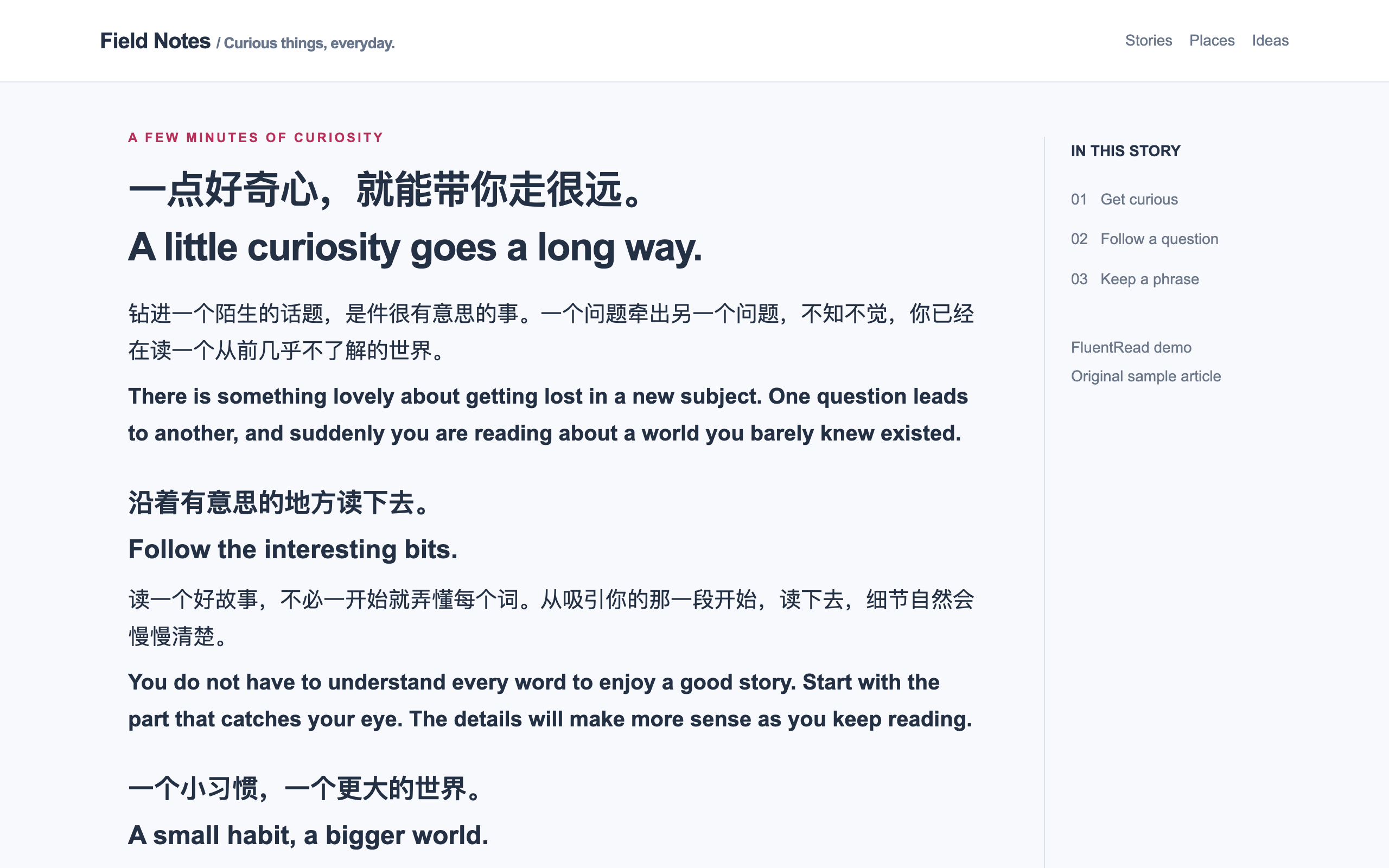
阅读为我们打开一扇了解世界的窗。
一本好书能带你发现新的天地。
Display mode is saved and updates existing translations without another request. Google Translate supports bilingual display only; switch back to bilingual before using it.
If the font is hard to read, click Aa at the bottom right of the card to use the browser's default font; click again to restore the previous font. This preference is saved for all webpages, immediately updates existing and future translations, and survives refreshes.
Translation follows your reading position by default, including newly expanded comments and later-loaded text. Change the translation range in settings to process the whole page at once. Restoring the original ends the current session; choose another language or service and start again if needed.
Passages already in the target or an excluded language usually keep their source text. Results matching the source are not duplicated. Simplified and Traditional Chinese can still convert when their characters differ. Language detection can be wrong; check source-language and site settings for missing translations.
To translate only an article, README, or comment thread:
The selection keeps sections crossed by fast or back-and-forth dragging. While dragging, you see the range; releasing the button checks its translatable content. Hover previews wait briefly for the pointer to settle before switching sections, reducing flicker. Moving to the toolbar keeps the selection unchanged.
Choose Reselect to pick again. Esc, right-click, or the close button exits. Picking does not open links or activate page buttons. Scroll after locking to check the range.
Select an already translated section again and confirm Restore original to stop its remaining work and restore that section. Confirm translation again to retry failed passages. Restoring the whole page also restores translated sections. Pausing the extension or leaving the page stops unfinished work.
Section translation uses the webpage service, language, and display mode by default. Enable Alt+R (Option+R on Mac) under Settings → Translation → Section translation if used often. See Shortcuts for independent profiles.
Full-page translation usually leaves headers, navigation, and sidebars unchanged. You can still select these areas explicitly. Their interface labels show only the translation to preserve the layout.
After locking, select Remember this section, choose the current directory or entire site, then choose a reminder or automatic translation for next time. Confirm Translate and remember. The default reminds you only in the current directory; without this option, translation applies only now. Several dragged sections can be saved together.
On later matching pages, only remembered sections are handled. Dismiss a reminder for the current visit; if no matching section is found, the page stays unchanged. If the website changes its structure, remove the old rule and pick again.
Manage, disable, or delete up to 100 rules under Section translation → Remembered sections. A rule can use an independent profile. If that profile is missing, choose another or select Follow default before continuing.
Retry individual failed passages directly. With the full-page progress panel enabled, Locate failed passage and Retry failed items handle failures in the current session while keeping successful text and your reading position. Passages you have not scrolled to are not failures.
A blocking dialog is translated first; closing it resumes the page. Restoring the original also cancels pending work, and old retry controls cannot restart it. A navigation that changes reading rules may restore the original first; start translation again on the new page.
For missing article text or navigation-only results, see Website reading area. Use image translation or area translation for text drawn in pictures or charts.
Enable 个人校订 (Personal corrections) under Settings → Translation → Reading assistance; it is off by default. Hover over a bilingual translation and choose 校订译文 (Edit translation), or press Alt+Shift+E. Edit, preview the affected sentences, check the scope, and confirm saving.
The default is Only this webpage; different addresses, including query parameters and fragments, have separate records. For related pages, create a project and explicitly join each page. Automatic reuse needs identical source text, source/target languages, and heading context. Similar sentences only supply a draft suggestion, and conflicting corrections are not reused automatically.
Manage, edit, delete, and undo records in the editor. Undo cannot overwrite later changes. Removing a correction, leaving a project, or disabling the feature restores provider output when available; otherwise it restores the source, which you can translate again. Disabling preserves records.
Corrections stay on this device, with limits of 1,000 records and 100 projects. They are excluded from glossaries, configuration backups, and cloud sync. Only safely editable plain-text bilingual webpage passages are supported. Translation-only mode, protected code or formulas, PDFs, captions, and the userscript have no correction entry.
Settings → General → Page helpers → Full-page translation ball is off by default. Enable it, then hover, focus with the keyboard, or tap to expand. Click its translation button to translate, and again to restore. Hold and drag to either side; its position is saved.
The gear opens the quick panel for the current page; click outside or press Esc to close. Advanced settings control hover or always-visible buttons, delay, click behavior, size, opacity, and sites where it stays hidden. Disabling the ball leaves Alt+T and context-menu translation available.
Right-click the page to translate it, selected text to Translate selected text, or an image to translate that image. Enable the corresponding context-menu entries in settings first.
To use selection translation only through right-click, choose Context menu only under Specialized translation → Selection translation → Activation and keep its menu entry enabled. Select text again if the selection is no longer valid; retry failures in the result card.
Automatically translate frequently visited sites, or keep selected sites in their original language. See Website reading area for setup.
Detect the source language automatically or select it explicitly. Services and models support different language pairs; a listed language is not supported by every service. Image and speech recognition also have separate language limits.
Buttons, tabs, and form labels show only the translation even in bilingual mode to preserve their layout. Restoring returns their source labels. Input text and values submitted with forms remain unchanged. Standalone times, numbers, and constantly changing counters usually stay original; full sentences containing them can still translate.
Raw XML, RSS, and SVG documents are left untouched; normal HTML and XHTML pages are supported. GitHub code lines remain original, while commit messages and comments can translate. The browser extension also supports embedded apps on standard Hugging Face Space addresses. Custom domains and special names with dots or underscores are not covered.
For missing menus or navigation, enable recognition of all nodes under Advanced settings → Page recognition, restore the page, and translate again. The wider scope changes more interface text; turn it off when no longer needed.
In Advanced settings, adjust: